Delivery Routes
Plan stops, constraints and route execution
Delivery Routes
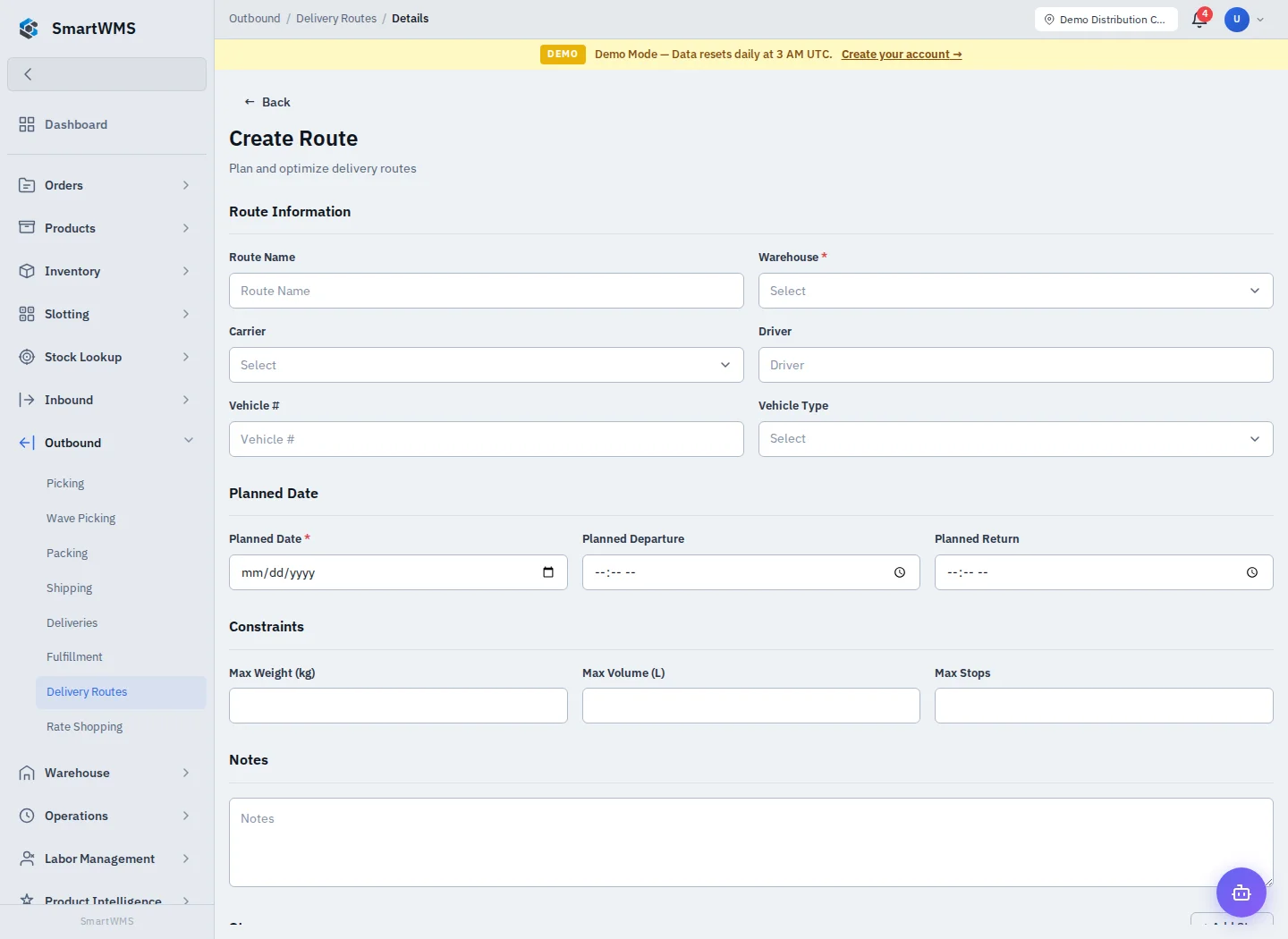
Open Outbound → Delivery Routes and choose Create Route.
Plan
- Enter Route Name and select the required Warehouse and Planned Date.
- Select Carrier if appropriate and enter Driver, Vehicle Number and Vehicle Type.
- Add planned departure/return, maximum weight, maximum volume in litres and maximum stops where needed.
- Use Add Stop to attach the required deliveries/destinations and review their order.
- Save the route and open its detail view.
Execute and maintain
Use the available planning/optimization and execution actions for the route's current status. Check the proposed sequence against time, vehicle capacity and actual destinations before starting. Review stop progress and record completion with the detail controls.
Optimization is a planning aid, not a guarantee of a physically feasible journey. Coordinates/address quality and configured routing services affect the result. A driver or vehicle text field does not create an external booking.
If a stop cannot be added, confirm its eligibility and warehouse. Before cancelling or reordering a route, review stops already in progress. Keep delivery confirmation consistent with the linked shipment/order.