Notification Templates
Create and maintain supported notification text
1 min read
Updated 21 October 2026
Notification Templates
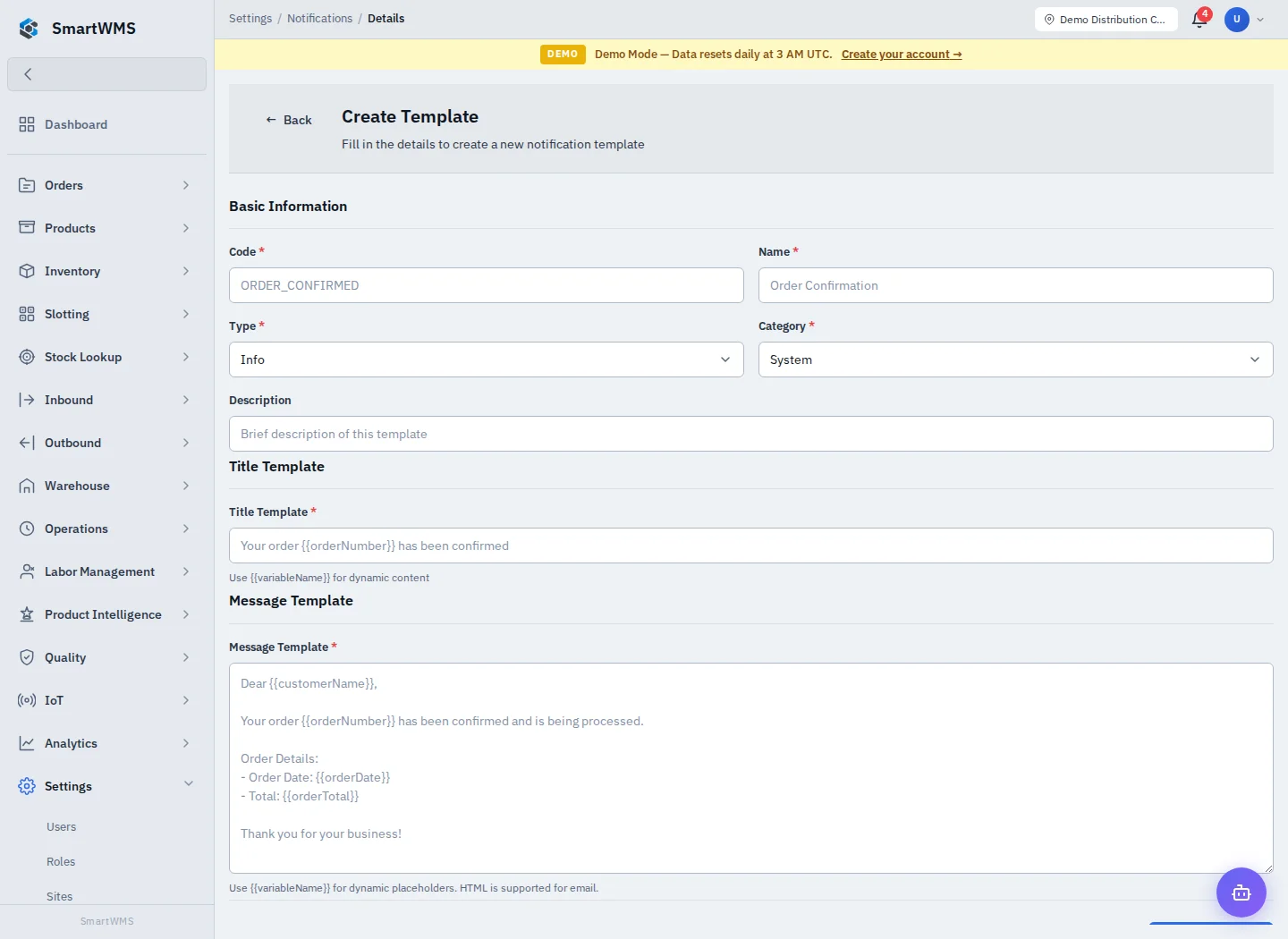
Open Settings → Notifications. The configuration screen manages templates; it is different from the user's notification inbox/bell.
- Choose Create Template.
- Enter required Code, Name, Type and Category, plus optional Description.
- Enter Title Template and Message Template.
- Use placeholders in the form {{variableName}} only when the event producing the message supplies that variable.
- Save and inspect the template details before using it in a rule/workflow.
Changing a template does not itself send a message. Delivery depends on the event, configured action/channel and valid recipient. A stored template does not prove email delivery or inbox receipt.
Avoid including passwords, tokens or unnecessary personal information in notification text. Check Automation for event-driven actions. Use a synthetic recipient/content when testing; do not assume every placeholder from another template exists for your event.