Packing Tasks and Packages
Pack the exact picked quantities and prepare a shipment
Packing Tasks and Packages
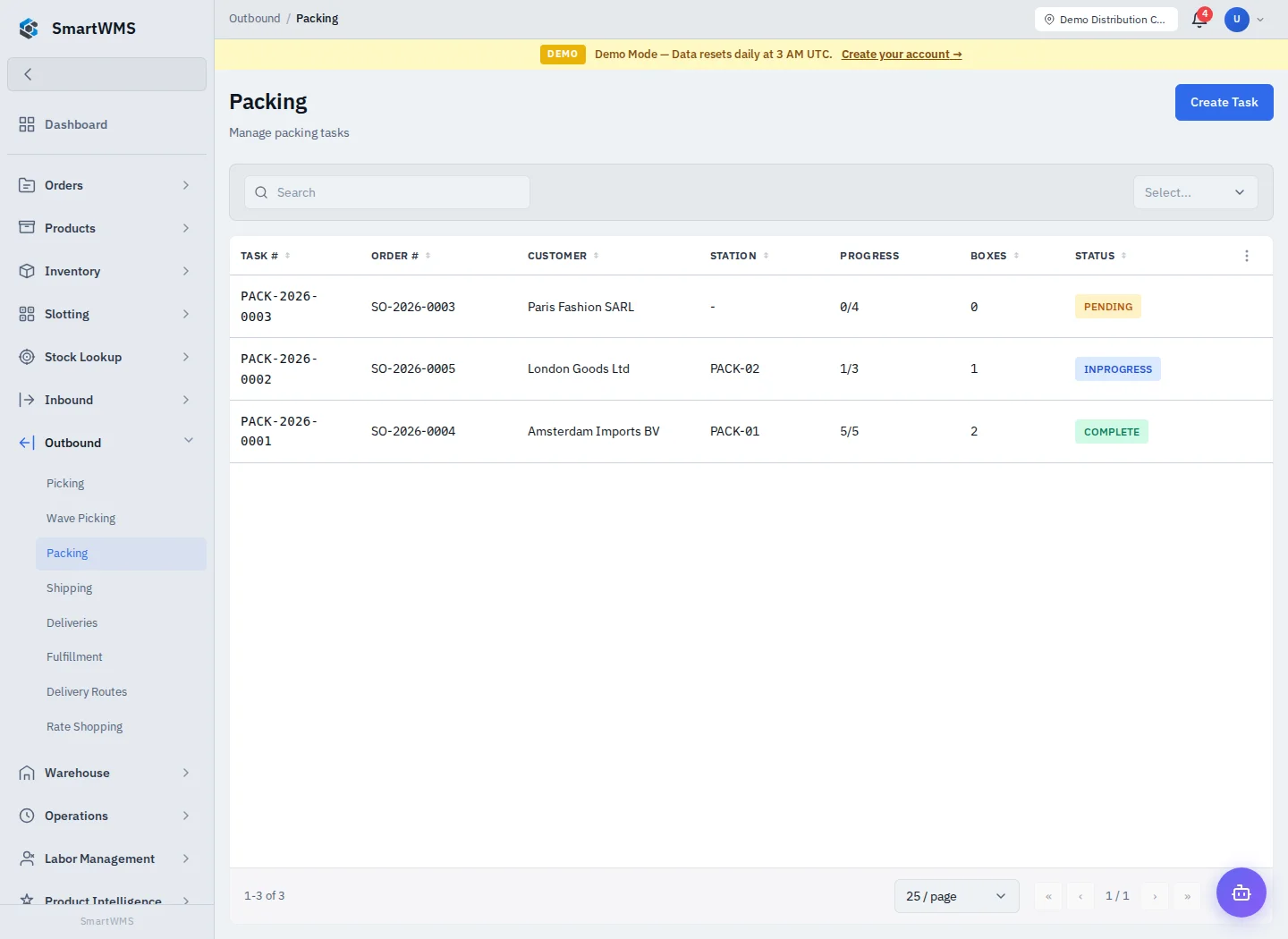
Open Outbound → Packing. Select an existing task or use the create action to select a sales order and, if offered, a fulfillment batch, packing station, assignee and priority.
Pack the order
- Confirm the order has picked quantities and choose the correct task.
- Assign an operator if required and start the task.
- Add at least one package. Record its weight, dimensions and packaging type as requested.
- Add product items to the package with SKU, quantity and any batch/serial identity.
- Compare package totals with the picked quantities for every product.
- Complete the task only when exactly the picked goods are packed.
The completion check rejects missing packages, extra/unpicked products or quantities that do not match the picked order quantities. Editing a package is not a new stock receipt.
Check downstream records
Review the packing status, box count/weight, related shipment and sales-order status separately. A completed packing task is not proof of dispatch. In the verified deployment, the order can still need the permitted Picked → Packed status steps, and the shipment can need Mark Packed before shipping.
Review or correct package contents while the task permits it. Do not create duplicate packing tasks or shipments to work around a stale status. See Shipments and the worked example.