Stock Adjustments
Create, review and apply justified inventory corrections
Stock Adjustments
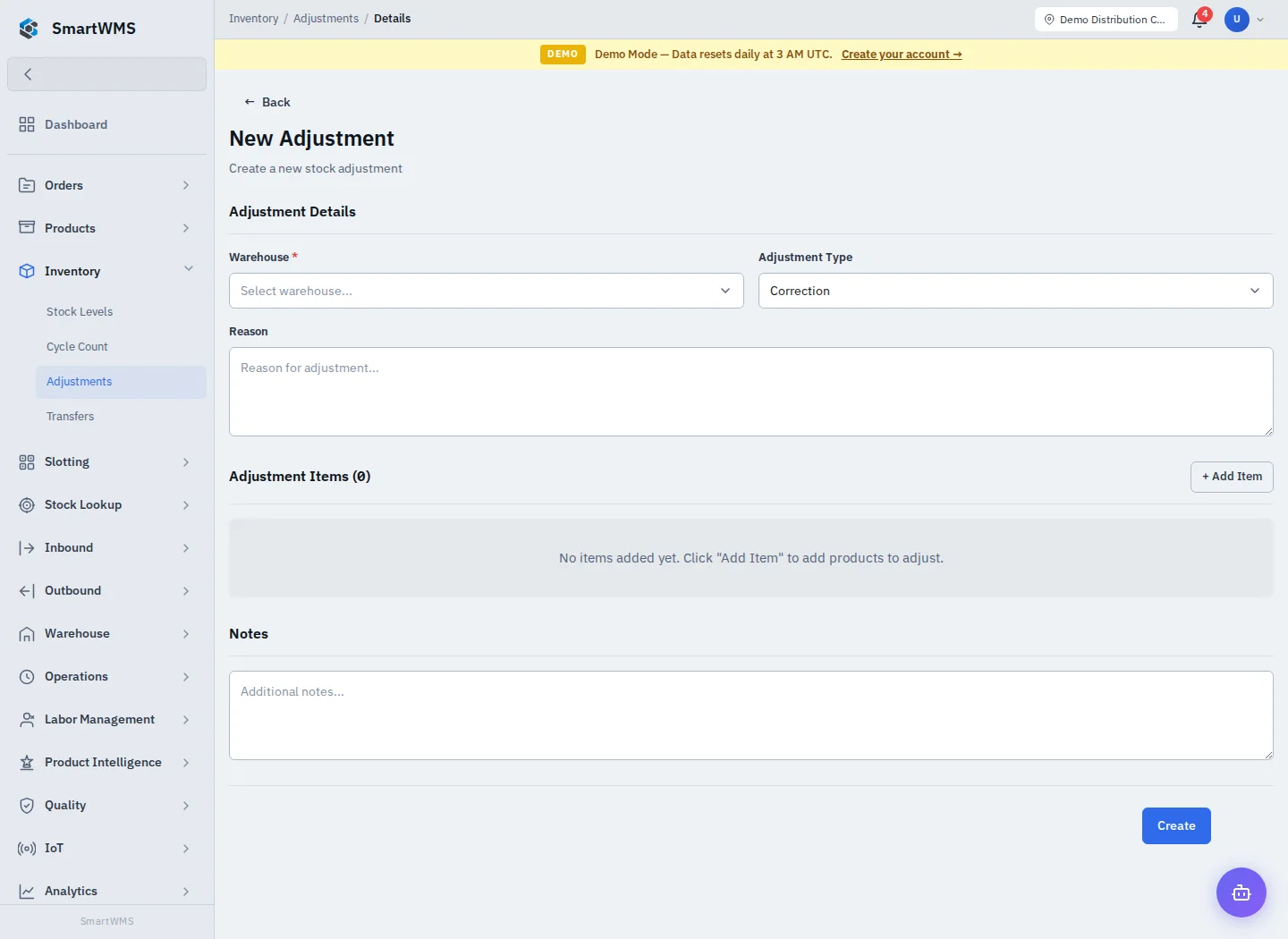
Open Inventory → Adjustments. Adjustments correct a documented difference; normal inbound deliveries belong in Receiving.
Prepare a correction
- Choose New Adjustment and select the Warehouse.
- Select Adjustment Type, enter a Reason and add Notes explaining the discrepancy.
- Use Add Item to select the product, location, quantity and tracking identity requested by the form.
- Check whether the field represents a signed difference or an absolute counted quantity before saving.
- Open the saved document and follow its review/approval/completion actions when available to your role.
Saving a draft adjustment is not proof that stock was changed. Check the document's status and affected stock records after the apply/complete action.
Validation and audit
Confirm product/location belong to the selected warehouse. A batch/serial correction must identify the existing tracked stock; do not erase that identity to force a generic correction. Negative/insufficient stock and unavailable statuses can block a request.
Keep the explanation, actor and related count/receipt reference for an audit. For a physical count, prefer the Cycle Count review and adjustment process, which preserves count information.