Automation Rules
Configure triggers, conditions and event-driven actions
1 min read
Updated 21 October 2026
Automation Rules
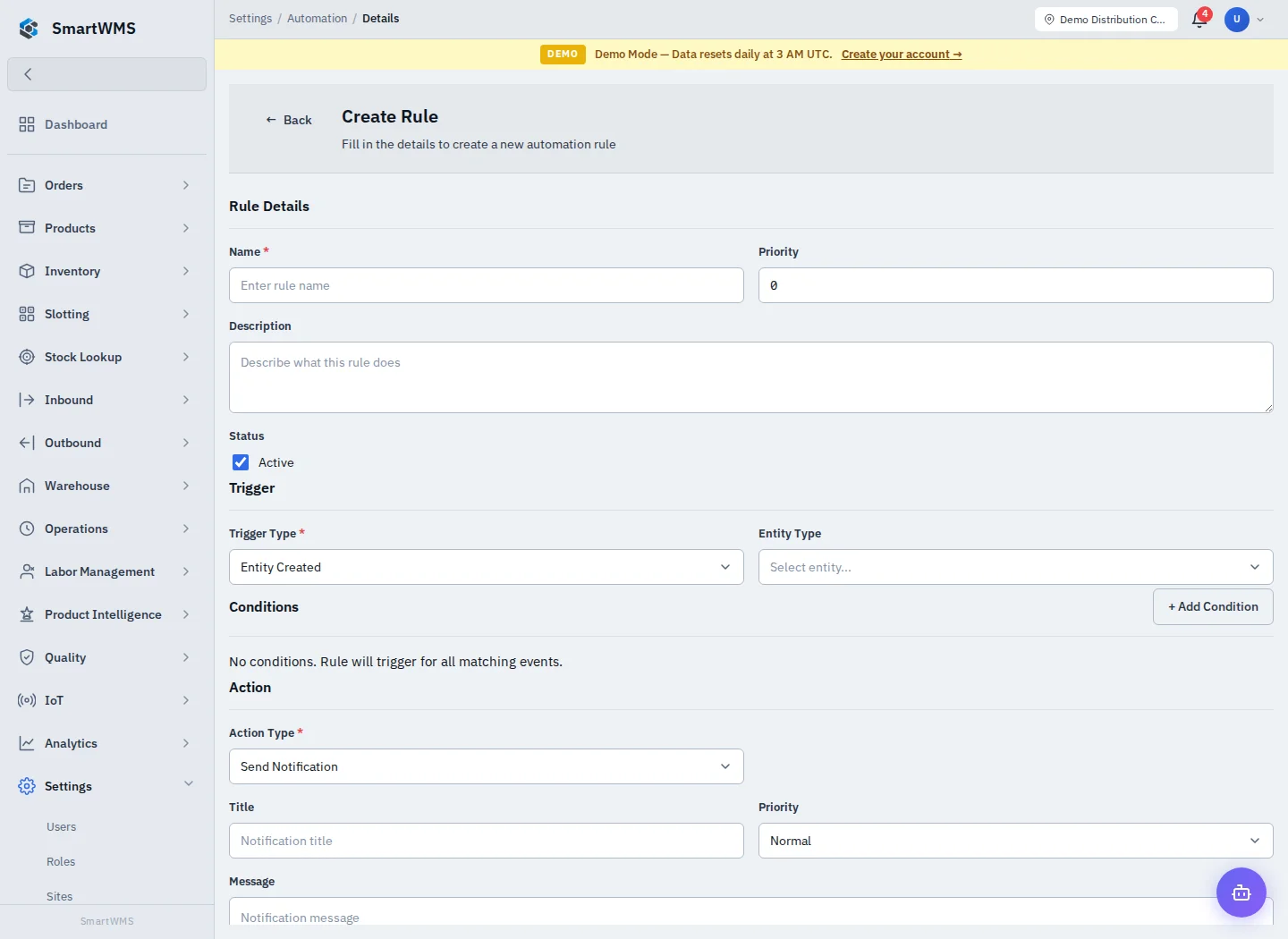
Open Settings → Automation and choose Create Rule.
- Enter Name, Priority and Description, and choose the intended status.
- Select Trigger Type and Entity Type.
- Add conditions to restrict matching events. No conditions means all events matching the trigger/entity can qualify.
- Select Action Type and complete the action-specific fields. Send Notification, for example, asks for title, message and priority.
- Save, review the detail page and test with a deliberately isolated event before enabling broad behavior.
Keep rules narrow. A high-priority rule does not bypass the permissions or validation of the action it triggers. If a rule does not run, inspect active status, entity/trigger match, conditions and the related event/action result.
External URLs or message channels can have real effects. Validate them with synthetic data and do not point a trial rule at real customer recipients. Avoid assuming a schedule or action exists unless it is offered by the form. See Notification Templates.