Sales Orders
Create orders, manage lines and follow the sales-order lifecycle
Sales Orders
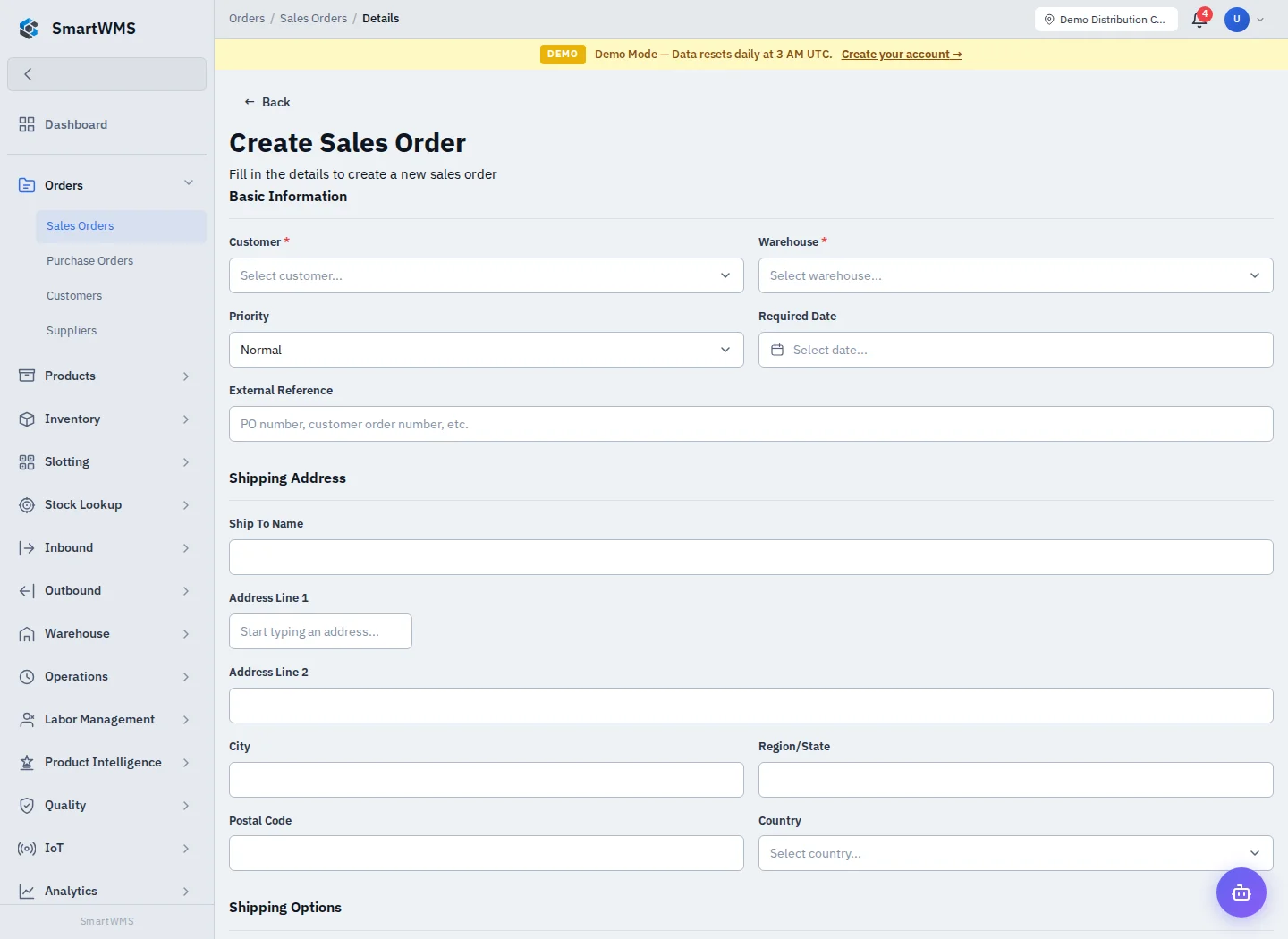
Open Orders → Sales Orders. Use Create Sales Order for a new order, or search the list and open a record to review its lines and related operations.
Create and edit
- Select Customer and Warehouse. Create the customer first if it is absent.
- Use Add Line, select the product and enter Quantity Ordered. Add each separately managed SKU as its own line.
- Complete priority, Required Date, External Reference, destination and optional carrier/service information.
- Save with Create Order, then reopen the order to verify the lines and totals.
- Make corrections while editing is available. A confirmed or already processed document may restrict changes; use its permitted actions rather than recreating it silently.
Status transitions
| Current status | Allowed next statuses |
|---|---|
| Draft | Pending, Cancelled |
| Pending | Confirmed, OnHold, Cancelled |
| Confirmed | Allocated, OnHold, Cancelled |
| Allocated | PartiallyPicked, Picked, OnHold, Cancelled |
| PartiallyPicked | Picked, OnHold, Cancelled |
| Picked | Packed, OnHold, Cancelled |
| Packed | Shipped, OnHold, Cancelled |
| Shipped | Delivered |
| OnHold | Pending, Confirmed, Allocated, Cancelled |
Allocation checks and reserves stock. Picking, packing and shipping have their own documents and statuses. Check the order after completing each task; do not assume its status advanced automatically. In the verified deployment a completed pick/packing task can leave the order Allocated: after verifying picked quantities, use the allowed Picked → Packed steps before dispatch.
Cancellation must follow the permitted transition and account for reservations. Delivered and Cancelled are terminal. See Fulfillment, Packing and the verified walkthrough.