Fulfillment Batches
Group confirmed orders, allocate stock and release pick work
1 min read
Updated 21 October 2026
Fulfillment Batches
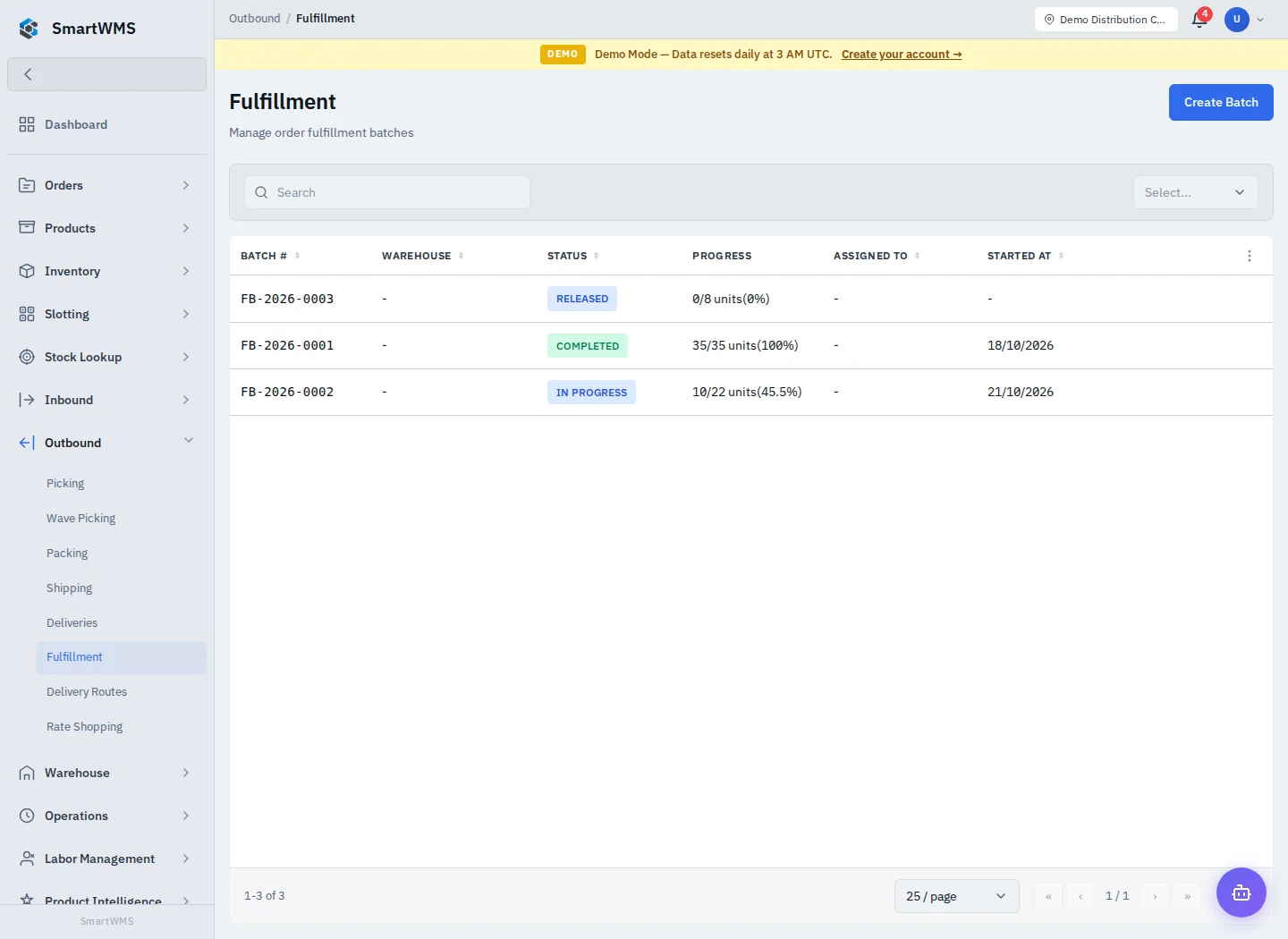
Open Outbound → Fulfillment and choose Create Batch.
- Select the Warehouse.
- Select the intended eligible orders. The form can include all confirmed orders when selection is left empty; review this choice before saving.
- Save and review the included orders on the batch.
- Use Release when the batch is ready. Allocation checks available stock and prepares the pick work.
- Open Outbound → Picking, assign the generated tasks to an operator and execute them.
An empty batch cannot be released. If allocation fails, read the result for the affected orders and check available/reserved stock and locations. A batch containing an order does not guarantee that its stock was allocated.
Batches and waves serve different purposes: a fulfillment batch groups orders; a wave groups eligible picking work. Review batch and task statuses before completing or cancelling. Completion of a task does not justify shipping unpicked goods.
Continue with Picking, Packing and Sales Orders.